
How to Install Smarters Pro on Firestick: 2026 Step-by-Step Guide
Master the setup of Smarters Pro on Firestick with our updated guide. Learn how to enable developer options, use the Downloader app, and optimize your 4K streaming experience.
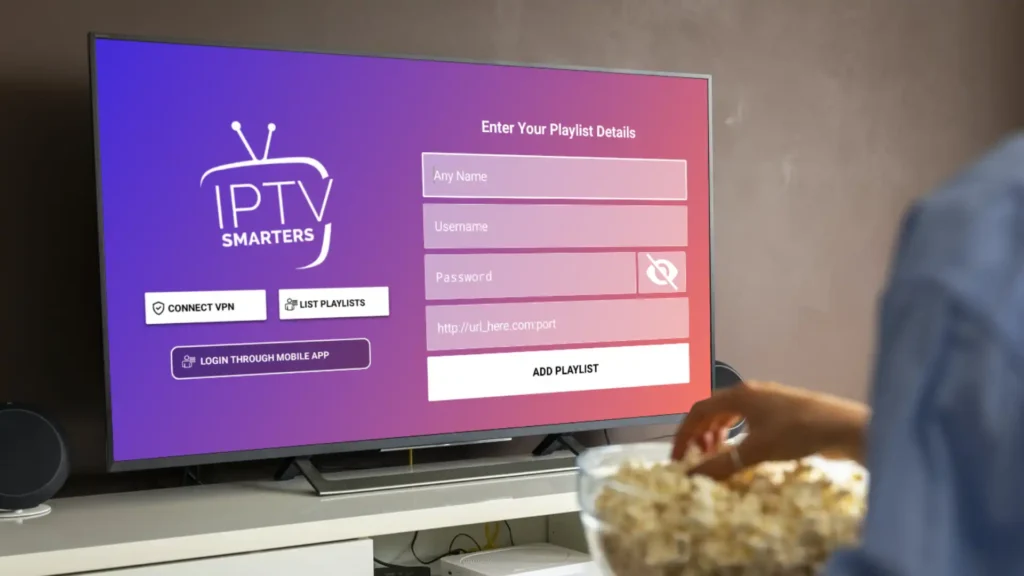
Introduction: Why Use Smarters Pro on Firestick?
The Amazon Firestick is one of the best affordable streaming devices, but the quality of the software depends on the player you use. Smarters Pro on Firestick is the perfect choice for viewers looking for a professional, cable-like interface. It supports multi-screen viewing, an Electronic Program Guide (EPG), and parental controls, making it a great option for advanced users.
Pro tip: Smarters Pro is a media player. You’ll need EPIX IPTV credentials (M3U link or Xtream codes) to stream content.
Step 1: Prepare Your Firestick (Developer Options)
To install Smarters Pro on Firestick, you must first bypass the default app store restrictions:
Navigate to Settings > My Fire TV.
Select Developer Options.
Note: If you don’t see this, go to About and click your Device Name 7 times until it says “You are now a developer.”
Turn ON “Install unknown apps” for the Downloader utility.
Step 2: Install the "Downloader" App
Since Smarters Pro is often unavailable on the official Amazon Appstore, we use “Downloader” as a bridge:
Go to the Find (Search) icon on the Firestick home screen.
Search for “Downloader”.
Click Get or Download.
Launch the app and grant it permission to access your storage.
Step 3: Download the Smarters Pro APK
Using the sideloading method is the most reliable way to get the latest version:
Open Downloader.
In the URL field, enter the quick code: 78522.
Click Go. The APK file will start downloading automatically.
Once finished, click Install.
Storage Tip: After installation, click Done and then select Delete. This removes the installation file to save precious space on your Firestick.
Step 4: Setting Up Your Streaming Profile
Once you launch the app, follow these steps to connect your service:
Choose “Login with Xtream Codes API” (recommended for better stability).
Enter your subscription details:
Any Name: Label it “Home” or “Work.”
Username/Password: Provided by your service.
URL: The server portal address.
Click Add User.
Troubleshooting & Performance Tips
Buffering Issues: Ensure your Firestick is connected to a 5GHz Wi-Fi band or use an Ethernet adapter.
App Crashing: Clear the app cache by going to Settings > Applications > Manage Installed Applications > Smarters Pro > Clear Cache.
Privacy: Always use a VPN when streaming to protect your data and prevent ISP throttling.
Conclusion
By following these steps, you’ve successfully optimized your Smarters Pro on Firestick setup. This combination offers one of the most fluid and organized streaming experiences available today.
Step 5: Frequently Asked Questions (FAQ)
Yes, the Smarters Pro application is free to download and install. However, it is strictly a media player. To watch content, you must have an active subscription from a service provider that supports M3U playlists or Xtream Codes API.
Amazon frequently updates its app policies, and many IPTV players are not hosted directly on their store due to regional restrictions. Sideloading via the Downloader app is the standard and safest way to get the official version on your device.
To update the app, you usually need to uninstall the old version and repeat the installation process using the latest APK code (e.g., 78275). This ensures you have the latest security patches and features.
Absolutely. In fact, it is highly recommended to use a VPN. A VPN prevents ISP throttling, which can cause buffering, and it secures your streaming data from third-party tracking.
If you experience lag, try these three things:
Clear Cache: Go to Settings > Applications > Smarters Pro > Clear Cache.
Switch Hardware: Ensure you are using the 5GHz Wi-Fi band or an Ethernet adapter for a stable connection.
Update URL: Ensure your portal URL is correct and hasn’t been changed by your provider.